In this post, I want to share my method for calculating segment sizes for segmented vases. Like many others who have decided to create a segmented vase, I was initially puzzled by the problem of calculating segment sizes for all the layers.
On the one hand, I didn't want to make the segments too wide, leaving room for possible errors; on the other, I was afraid of making the segments too narrow.
Ultimately, I developed two files as a tool for designing segmented vases:
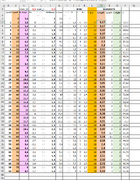
MS Excel - contains all the calculations (left image below)
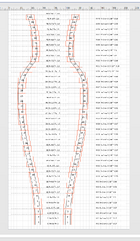
MS Visio - the visual part (right); for visualization, I wrote VBA macros that read the MS Excel file and generate the design image.
The attached zip file contains these two example files (this example is the vase project shown in my introductory post https://www.aawforum.org/community/threads/dzmitry-kupryk.25089/).
It's very easy to use. The only drawback (possibly a significant one) is that you need a computer with MS Excel and MS Visio.
Now how it works:
The vase grows downwards; all dimensions are in cm.
Column "A" is the sequential layer number.
First, you need to determine the height of the rings (for example, the thickness of the boards from which you will cut the segments), which you enter in column "O."
Column "B" calculates the height of each layer.
Now you need to specify the radius of your vase on each layer (column "C"); column "D" shows the amount of narrowing/widening of the vase. In the "F" column, specify the wall thickness of the ring.
In the "L" column, specify the number of segments; in the "M" column, calculate the outer side of the segment (calculating a Regular Polygon based on its inscribed circle).
In the "H" column, specify the width of the segments (ring thickness); it must be no less than the calculation in the "K" column.
Also, in D1 and F1, I include an additional safety margin, since larger ring diameters may deviate from the circular shape.
Now you can see the calculation results.
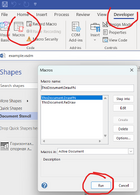
In MS Visio, you must at first set enable macros and set in the ribbon settings to "Developer."
Now, you need call macros. The first time call ThisDocument.DrawFN. The selected file name will be remembered, and then you can simply call ThisDocument.ReDraw.
The red squares indicate the segments in cross-section; the black lines indicate the contour of the vase.
Now, seeing the imperfections in the vase's shape, you can change the radius values in column "C."
If you notice that the vase's contours extend beyond the segment boundaries, you should increase the width of the segments in the corresponding ring (column H).
You don't need to close the xlsx file; you just need to save the changes.
Ultimately, by adjusting the vase design one by one and visually checking the results, you will achieve the desired result.
I'll be happy if my method is useful to someone.
On the one hand, I didn't want to make the segments too wide, leaving room for possible errors; on the other, I was afraid of making the segments too narrow.
Ultimately, I developed two files as a tool for designing segmented vases:
MS Excel - contains all the calculations (left image below)
MS Visio - the visual part (right); for visualization, I wrote VBA macros that read the MS Excel file and generate the design image.
The attached zip file contains these two example files (this example is the vase project shown in my introductory post https://www.aawforum.org/community/threads/dzmitry-kupryk.25089/).
It's very easy to use. The only drawback (possibly a significant one) is that you need a computer with MS Excel and MS Visio.
Now how it works:
The vase grows downwards; all dimensions are in cm.
Column "A" is the sequential layer number.
First, you need to determine the height of the rings (for example, the thickness of the boards from which you will cut the segments), which you enter in column "O."
Column "B" calculates the height of each layer.
Now you need to specify the radius of your vase on each layer (column "C"); column "D" shows the amount of narrowing/widening of the vase. In the "F" column, specify the wall thickness of the ring.
In the "L" column, specify the number of segments; in the "M" column, calculate the outer side of the segment (calculating a Regular Polygon based on its inscribed circle).
In the "H" column, specify the width of the segments (ring thickness); it must be no less than the calculation in the "K" column.
Also, in D1 and F1, I include an additional safety margin, since larger ring diameters may deviate from the circular shape.
Now you can see the calculation results.
In MS Visio, you must at first set enable macros and set in the ribbon settings to "Developer."
Now, you need call macros. The first time call ThisDocument.DrawFN. The selected file name will be remembered, and then you can simply call ThisDocument.ReDraw.
The red squares indicate the segments in cross-section; the black lines indicate the contour of the vase.
Now, seeing the imperfections in the vase's shape, you can change the radius values in column "C."
If you notice that the vase's contours extend beyond the segment boundaries, you should increase the width of the segments in the corresponding ring (column H).
You don't need to close the xlsx file; you just need to save the changes.
Ultimately, by adjusting the vase design one by one and visually checking the results, you will achieve the desired result.
I'll be happy if my method is useful to someone.