I'll add this tip to the "how to add photos" posting.
Adding pictures to "text" postings:
To add pictures in the text section of the forum you must be in one of the modes:
"post reply"
"edit posting"
"create new thread"
etc
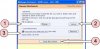
Once you are adding text you may notice there are options below the text box. Select "manage attachments" to add pictures to your posting. This will bring up a separate window, as shown in the "Manage Attachments" picture below.
1) Select "Browse" to look at picture files on your computer. This will open another window so you can select a file. Select a photo file and select "open" within the new window.
2) Then select upload. Once the file uploads then the window will indicate you have uploaded a file - it will list it under "Current Attachments" (see #3). If you get an error it is likely that your file is too large. Check the file to ensure it is less than 40kb in size.
To proceed, you can upload more photo files or you can select "close this window" to save the photos to your posting.
4) Selecting "close this window" will add the picture(s) to your posting. The picture files will be listed under "attach files" (in the edit/add posting mode), below the text window.
Photo file limitations:
These limitations apply to photos added to text postings only.
- each file must be 39k in size, or smaller
- there is a limit of 4 pictures per posting
Adding pictures to "text" postings:
To add pictures in the text section of the forum you must be in one of the modes:
"post reply"
"edit posting"
"create new thread"
etc
Once you are adding text you may notice there are options below the text box. Select "manage attachments" to add pictures to your posting. This will bring up a separate window, as shown in the "Manage Attachments" picture below.
1) Select "Browse" to look at picture files on your computer. This will open another window so you can select a file. Select a photo file and select "open" within the new window.
2) Then select upload. Once the file uploads then the window will indicate you have uploaded a file - it will list it under "Current Attachments" (see #3). If you get an error it is likely that your file is too large. Check the file to ensure it is less than 40kb in size.
To proceed, you can upload more photo files or you can select "close this window" to save the photos to your posting.
4) Selecting "close this window" will add the picture(s) to your posting. The picture files will be listed under "attach files" (in the edit/add posting mode), below the text window.
Photo file limitations:
These limitations apply to photos added to text postings only.
- each file must be 39k in size, or smaller
- there is a limit of 4 pictures per posting